User Guide
Table of Contents
- Table of Contents
- Introduction
- Graphical User Interface
- Quick Start
- Using LinkyTime
- Command Format
- Features
- FAQ
- Command summary
- Interpreting errors
Introduction
LinkyTime is a meetings link management system tailored for NUS students. It serves as a centralized platform for students to easily organize their online classes.
As NUS students, a common problem we face during this era of home-based learning is that the online lecture and tutorial links are disseminated across different platforms, such as via emails and LumiNUS. LinkyTime solves this problem by providing a platform for students to easily keep track of these meetings in one place.
The app is optimized for use via a Command-Line Interface while still having the benefits of a Graphical User Interface.
If you’re not familiar with using a Command-Line Interface, this User Guide can help you get up and running in no time.
How to use the User Guide
You may refer to the Table of Contents to quickly navigate the User Guide.
The LinkyTime User Guide utilizes various visual cues to supplement the information presented. The following table provides an overview of all the typographical conventions used.
| Convention | Description |
|---|---|
Monospace |
Command inputs and syntax, file paths. |
| Hyperlink | Hyperlinks to external websites or within the user guide itself. |
| Bold text | Important keywords to take note of. |
 Note Note |
Information of special interest or importance. |
 Warning Warning |
Potentially irreversible action that may result in loss of data. |
Graphical User Interface
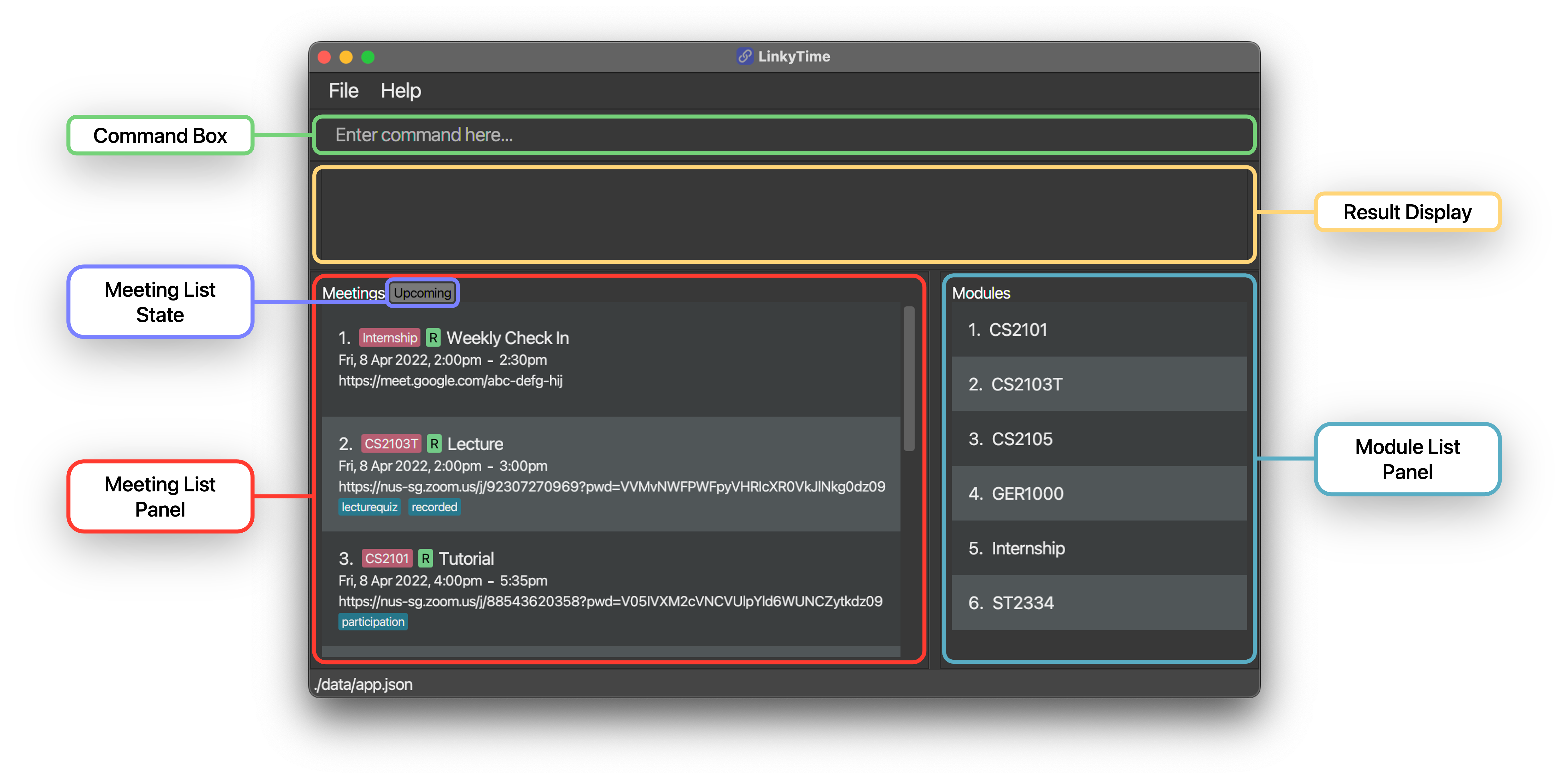
LinkyTime’s graphical user interface consists of 4 main components:
- Command Box
- Result Display
- Meeting List Panel
- Meeting List State
- Module List Panel
You may type your commands in the Command Box and press Enter to execute it. The result message is displayed in the Result Display box.
Your meetings are displayed on the left in the Meeting List Panel, and your modules are displayed on the right in the Module List Panel.
At the top of the Meeting List Panel, the Meeting List State label indicates whether you are viewing your ongoing and upcoming meetings or your archived meetings.
Meeting Card
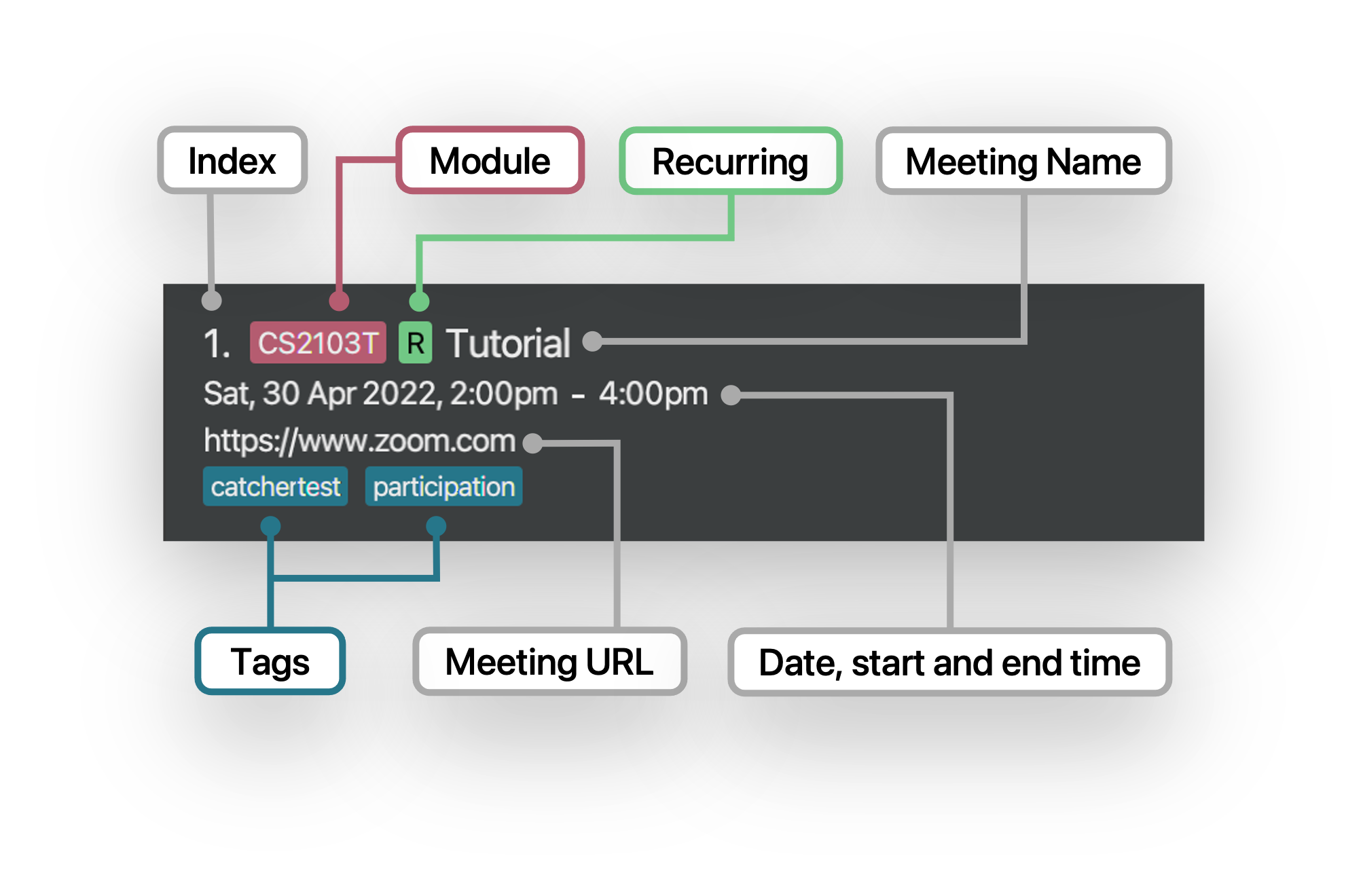
Each meeting is displayed as shown in the example above.
Module Card
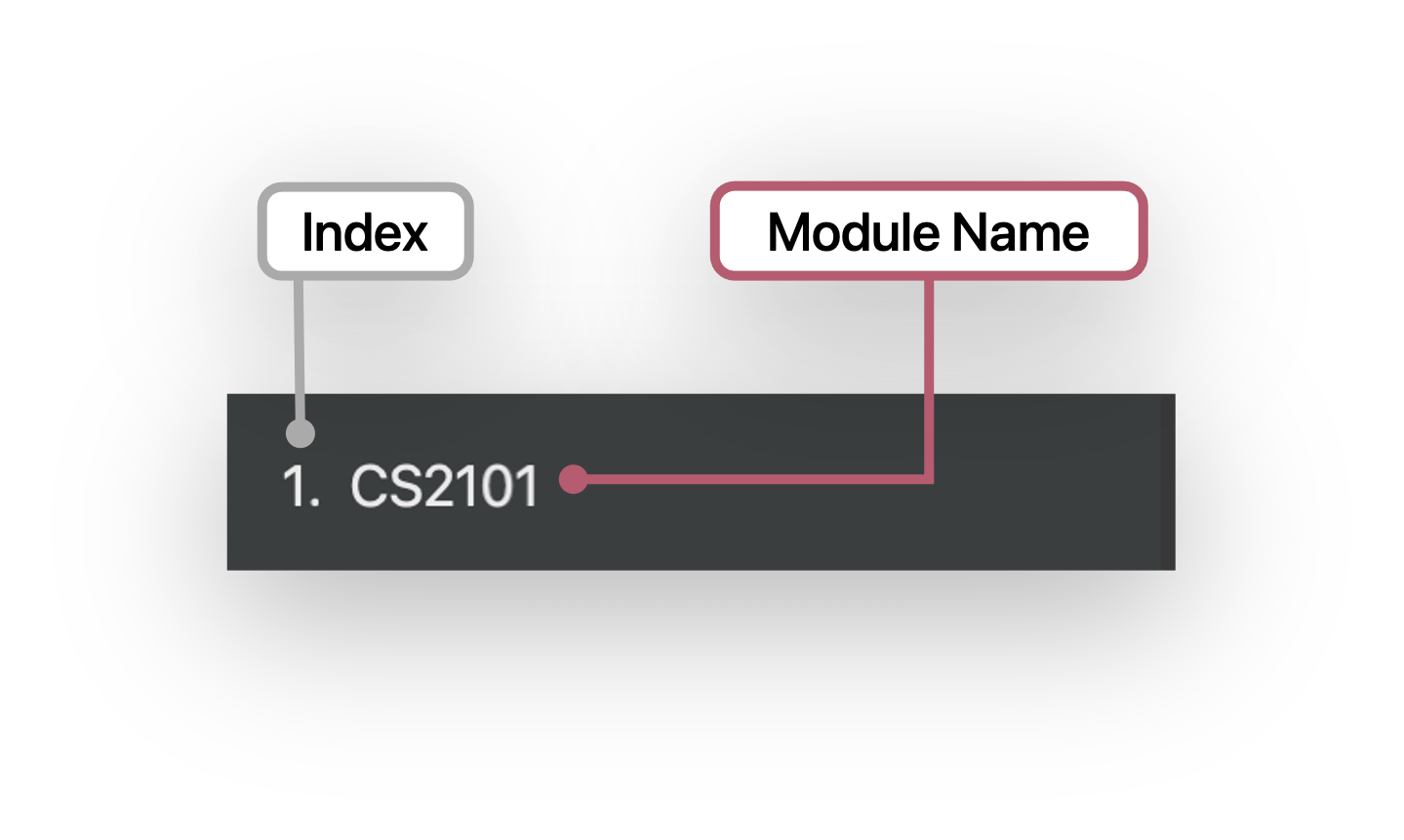
Each module is displayed as shown in the example above.
Quick Start
-
Ensure you have Java 11 or above installed in your computer.
-
Download the latest
linkytime.jarfrom here. -
Copy the file to the folder you want to use as the home folder for the app.
-
Double-click the file to start the app. A GUI similar to the one shown below should appear in a few seconds. Note how the app contains some sample data.

-
Type a command in the command box and press Enter to execute it. e.g. typing
listand pressing Enter will list all upcoming meetings.Some example commands you can try:
-
list: Lists all upcoming meetings. -
madd n/CS2105: Adds a module calledCS2105to the list of modules. -
add n/Tutorial u/https://www.zoom.com d/25-04-2022 1400 dur/2 m/1 r/Y t/Quiz: Adds a meeting namedTutorial, tagged asQuiz, on25 April 2022at2:00pmfor2hours, and is assigned to the 1st module in the module list. The meeting is set to repeat weekly. -
delete 3: Deletes the 3rd meeting shown in the current list. -
exit: Exits the app.
-
-
Refer to the Features below for details of each command, Command Parameters for details on the available command parameters, or Using LinkyTime for how to set up for a new semester.
Using LinkyTime
Here are the steps to follow if you are using LinkyTime for the first time. You may refer to the Features for additional details on the specific commands. Before following this guide, you may try the example commands in the Quick Start section on the sample data.
-
Run the
clearcommand to clear the sample data. -
Add all the modules that you are taking with the
maddcommand. -
Add your upcoming meetings for each module with the
addcommand. Your meetings will be listed in chronological order, and will automatically be moved to your archive once they’re over. -
You can use the
listorarchivecommands to view upcoming meetings or meetings that have passed respectively. -
You can also use other commands such as
findandopento help you search for and open your desired zoom meetings. -
If you need to update a meeting information or remove a meeting, you can use the
editanddeletecommands. -
If you need to update a module information or remove a module, use the
meditormdeletecommands. Note that modules cannot be deleted if there are meetings assigned to it. -
When you are done with LinkyTime, use the
exitcommand to close the program. -
If you need help at any time, you can access this User Guide using the
helpcommand and follow the link shown.
Command Format
The commands in this user guide follow this format:
-
Words in
UPPER_CASEare parameters that you can specify.
e.g. inadd n/MEETING_NAME,MEETING_NAMEis a parameter which can be specified, such asadd n/Lecture. -
Items in square brackets are optional.
e.g.n/MEETING_NAME [t/TAG]can be used asn/Lecture t/midtermor asn/Lecture. -
Items with
… after them can be used multiple times, including zero times.
e.g.[t/TAG]…can be used ast/recorded,t/recorded t/lecturequizetc. -
Parameters can be in any order.
e.g. if the command specifiesn/MEETING_NAME u/URL,u/URL n/MEETING_NAMEis also acceptable. -
If a parameter is expected only once in the command, but you specified it multiple times, only the last occurrence of the parameter will be taken.
e.g. if you specifyn/Lecture n/Tutorial, onlyn/Tutorialwill be taken. -
Extraneous parameters for commands that do not take in parameters (such as
help,list,exitandclear) will be ignored.
e.g. if the command specifieshelp 123, it will be interpreted ashelp.
Command Parameters
Most LinkyTime commands use various parameters. Their formats and constraints are provided in the table below.
Features
This section describes each of the commands and features available in LinkyTime.
Meeting Management
Meetings are always sorted in chronological order.
Meeting list is only refreshed after every command is executed, i.e. manually refreshed. Real-time automatic refreshing will be implemented in the future.
Add a meeting : add
Adds a meeting into the meeting list.
Format: add n/MEETING_NAME u/URL d/DATETIME dur/DURATION m/MODULE_INDEX r/IS_RECURRING [t/TAG]...
Parameters:
-
MEETING_NAMEThe name of the meeting. -
URLThe URL to the online meeting. -
DATETIMEThe date and starting time of the meeting. -
DURATIONThe duration of the meeting in hours. Must be a decimal number between 1 minute to 24 hours, both inclusive. -
MODULE_INDEXThe index of the module in the module list that the meeting is for. -
IS_RECURRINGWhether the meeting recurs every week. Given asYorN. -
TAGThe tags associated with the meeting.
Examples:
-
add n/Lecture u/https://www.zoom.com d/25-04-2022 1400 dur/2 m/1 r/Y t/recorded t/lecturequizcreates a meeting calledLecturewith the tagsrecordedandlecturequiz, set to start on25 April 2022at2:00pmfor2hours, and is assigned to the first module in the module list. This meeting is set to repeat weekly. -
add n/Midterm u/https://meet.google.com d/13-05-2022 1000 dur/1.5 m/2 r/Ncreates a meeting calledMidtermon13 May 2022at10:00amfor1.5hours, and is assigned to the second module in the module list. This meeting does not repeat.
List all meetings : list
View all recurring, ongoing, and upcoming meetings in the meeting list and display their respective details.
Format: list
Some details include:
- Meeting URL
- Meeting name
- Meeting date and time
- Module the meeting is assigned to
List all archived meetings : archive
View all expired/elapsed meetings in the meeting list and display their respective details.
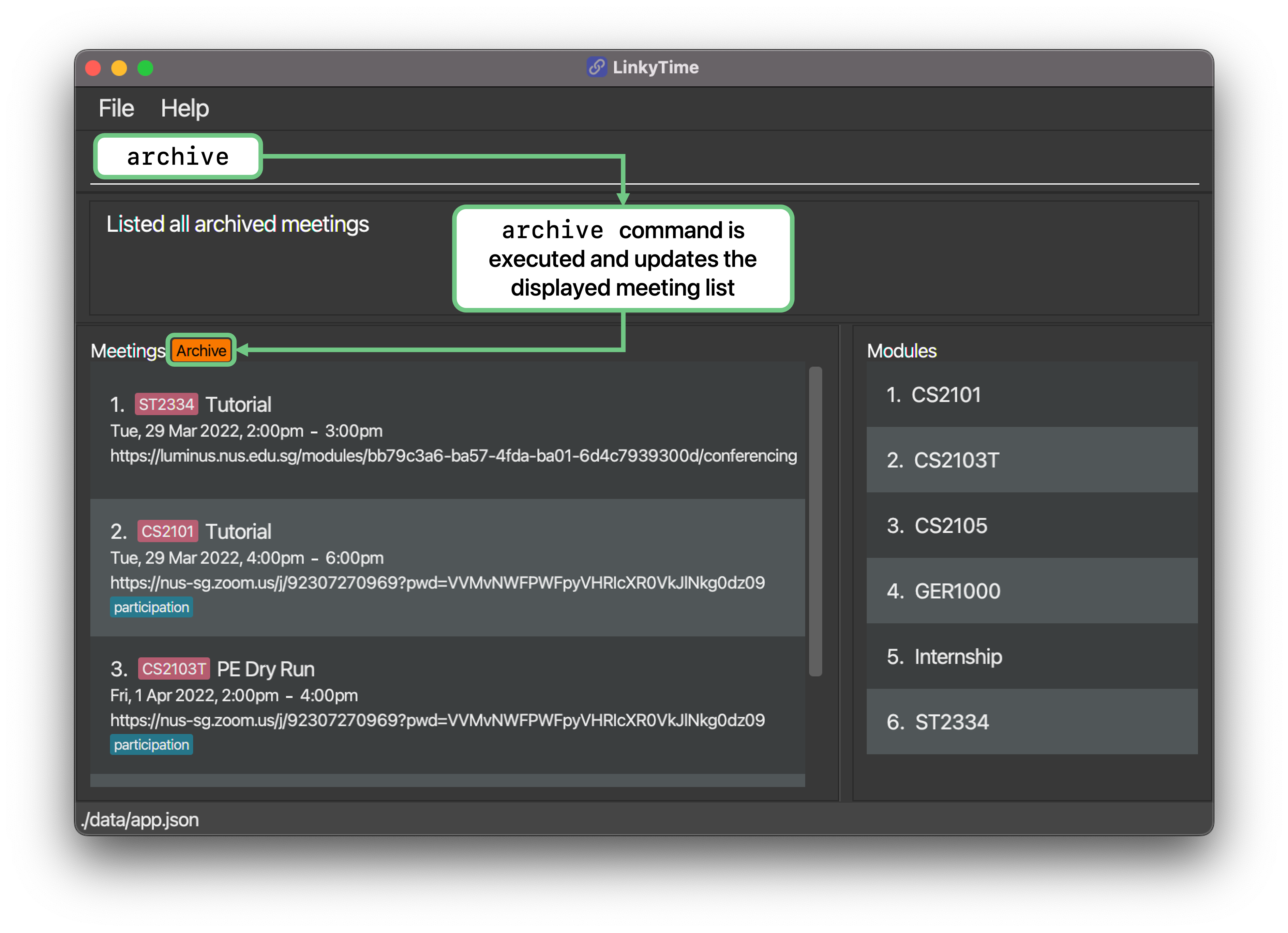
Format: archive
- Only non-recurring meetings will be archived. Recurring meetings do not expire, and will repeat on a weekly basis until it is deleted or set to stop recurring.
- Meetings are archived only when the meeting has ended. Ongoing meetings will remain in your upcoming list.
- When attempting to create a recurring meeting with a date that is set in the past, LinkyTime will compute the next recurrence relative to the current date and override the meeting date.
Find a meeting : find
find currently only searches through meetings via the name, module or tags. Searching by the meeting date time and URL domain will be implemented in the future.
Finds meetings whose fields contain the provided keywords.
Format: find KEYWORD [MORE_KEYWORDS]...
- Only the name, module, and tags are searched.
- The
findcommand is applied to the current list state of meetings, e.g.archivefollowed byfind KEYWORDwill perform the search on archived meetings only. - The search is case-insensitive, e.g.
lecturewill matchLecture. - The order of the keywords does not matter, e.g.
cs2100 aaronwill matchaaron cs2100. - Keywords are partially matched, e.g.
tutwill matchtutorial. - Only meetings that match all keywords will be returned (i.e. AND search), e.g.
recorded lecturewill return meetings that contain bothrecordedandlecturein its name, module, and/or tags. - If no meeting matching the search criteria is found, the resulting meeting list will be blank.
Parameters:
-
KEYWORDThe keyword to search for in the meeting list.
Examples:
-
listfollowed byfind CS2101 Aarondisplays all upcoming meetings with fields that matchesCS2101andAaron. -
archivefollowed byfind recorded lecturedisplays all archived meetings with fields that matchesrecordedandlecture.
Open a meeting URL : open
Opens a meeting URL link in the default web browser.
Format: open INDEX
- Opens the meeting at the specified
INDEX. - The index refers to the index number shown in the displayed meeting list.
- The index must be a positive integer 1, 2, 3, … that is within the range of the meeting list.
Parameters:
-
INDEXThe index of the meeting URL to open.
Examples:
-
listfollowed byopen 2opens the 2nd meeting’s URL in the meeting list.
Edit a meeting : edit
Edits a meeting in the meeting list.
Format: edit INDEX [n/MEETING_NAME] [u/URL] [d/DATETIME] [dur/DURATION] [m/MODULE_INDEX] [r/IS_RECURRING] [t/TAG]...
- Edits the meeting at the specified
INDEX. The index refers to the index number shown in the displayed meeting list. The index must be a positive integer 1, 2, 3, … - At least one of the optional fields must be provided.
- Existing values will be updated to the input values.
- When editing tags, the existing tags of the meeting will be removed, i.e., adding of tags is not cumulative.
- You can remove all the meeting’s tags by typing t/ without specifying any tags after it.
Examples:
-
edit 1 t/removes all tags from the meeting atINDEX1. -
edit 2 n/Midtermchanges the name of the meeting atINDEX2 toMidterm. -
edit 3 n/Recitation dur/1 t/Optional t/Recordedchanges the name of the meeting atINDEX3 toRecitation, duration of the meeting to 1 hour, and the tags to beOptionalandRecorded.
Delete a meeting : delete
Deletes the specified meeting from the meeting list.
Format: delete INDEX
- Deletes the meeting at the specified
INDEX. - The index refers to the index number shown in the displayed meeting list.
- The index must be a positive integer 1, 2, 3, … that is within the range of the meeting list.
Examples:
-
listfollowed bydelete 2deletes the 2nd meeting in the meeting list.
Module Management
Modules are always sorted in case-insensitive alphabetical order.
Add a module : madd
Adds a module into the module list.
Format: madd n/MODULE_NAME
Parameters:
-
MODULE_NAMEThe name or identifier of the module.
Examples:
-
madd n/CS2103Tcreates a module namedCS2103Tin the module list. -
madd n/Internshipcreates a module namedInternshipin the module list.
Edit a module : medit
Edits the module specified in the module list.
Format: medit INDEX n/MODULE_NAME
- Edits the module at the specified
INDEX. - The index refers to the index number shown in the displayed module list.
- The index must be a positive integer 1, 2, 3, … that is within the range of the module list.
- The existing value will be updated to the input value.
Examples:
-
medit 1 n/CS2101changes the name of the module atINDEX1 toCS2101. -
medit 2 n/Side Hustlechanges the name of the module atINDEX2 toSide Hustle.
Delete a module : mdelete
Deletes the specified module from the module list.
Format: mdelete INDEX [f/]
- Deletes the module at the specified
INDEX.- If there are meetings that are currently assigned to the specified module, deletion would fail due to dependent meetings.
- The index refers to the index number shown in the displayed module list.
- The index must be a positive integer 1, 2, 3, … that is within the range of the module list.
- Use the
f/flag to force delete the module and all its associated meetings.
Caution: This action is irreversible, and it is not possible to recover any deleted meetings and module. Examples:
-
mdelete 2deletes the 2nd module in the module list, provided there are no associated meetings. -
mdelete 1 f/deletes the 1st module in the module list and all associated meetings, if any.
General
Viewing help : help
Shows a message explaining how to access the help page.
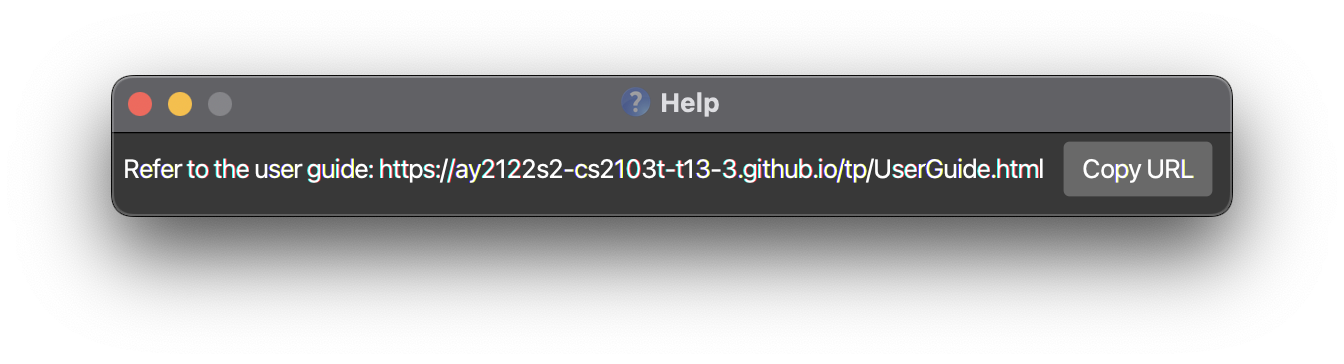
Format: help
Clearing all data : clear
Clears all meetings and modules from the application.
Caution:
This action is irreversible, and it is not possible to recover your data once it is cleared.
Format: clear
Exiting the program : exit
Exits the program.
Format: exit
Saving the data
Your meetings are saved to your computer automatically upon running any command that changes the data. There is no need to save manually.
Editing the data file
The meetings are saved in a JSON file at [JAR file location]/data/app.json. Advanced users are welcome to update their meetings directly by editing that file.
Caution:
If your changes to the data file makes its format invalid, LinkyTime will discard all data and start with an empty data file on the next run.
Clearing archived meetings : [coming in v2.0]
Details coming soon…
FAQ
Q: How do I transfer my data to another Computer?
A: Install the app in the other computer and overwrite the empty app.json data file it creates with the
equivalent app.json data file from your previous LinkyTime installation.
Command summary
| Action | Format, Examples |
|---|---|
| Add a meeting |
add n/MEETING_NAME u/URL d/DATETIME dur/DURATION m/MODULE_INDEX r/IS_RECURRING [t/TAG]... e.g., add n/Lecture u/https://www.zoom.com d/25-03-2022 1400 dur/1.5 m/1 r/Y t/recorded t/lecturequiz
|
| List all meetings | list |
| Find meetings |
find [keyword] [more keywords...] e.g., find CS2103T lecture
|
| Open a meeting URL |
open INDEXe.g. open 2
|
| Edit a meeting |
edit INDEX [n/MEETING_NAME] [u/URL] [d/DATETIME] [dur/DURATION] [m/MODULE_INDEX] [r/IS_RECURRING] [t/TAG]... e.g., edit 1 n/Recitation dur/1
|
| Delete a meeting |
delete INDEXe.g., delete 3
|
| List all archived meetings | archive |
| Add a module | madd n/MODULE_NAME |
| Edit a module |
medit INDEX n/MODULE_NAME e.g., medit 1 n/CS2101
|
| Delete a module |
mdelete INDEXe.g., mdelete 3
|
| Show help | help |
| Clear all data | clear |
| Exit | exit |
Interpreting errors
The error messages you may encounter while using LinkyTime should be mostly self-explanatory. This sub-section aims to clear up any possible ambiguity related to invalid arguments and/or parameters.
| Error | What it means |
|---|---|
| Unknown Command | An unrecognised command word was supplied. E.g., The command word was given in upper case. |
| Invalid Command | The command format entered is incorrect. Missing one or more compulsory parameters. |
| The meeting index provided is invalid | The index provided is out of the range of the list of meetings. |
| The module index provided is invalid | The index provided is out of the range of the list of modules. |
| Names should only contain alphanumeric characters and spaces, and it should not be blank | Check that the name is entered after the n/ prefix. |
| URLs should be a valid link, and it should not be blank | The URL provided should be in one of the following formats:
|
DateTime should be formatted as dd-MM-yyyy HHmm; e.g. 30-04-2022 1400 |
The dateTime given is invalid.
|
| Duration should be a decimal number (4dp) given in hours, and range from 1 minute to 24 hours inclusive | As written. Note that both 1 minute and 24 hours are accepted. |
Meeting recurrence status can only be a single letter Y or N |
As written. |
| Tags names should be alphanumeric | The tags entered contained spaces and/or special characters, which are not allowed. |
| Tags names are limited to at most 25 characters each | One or more of the tags entered exceeded the limit of 25 characters per tag. |
| At least one field to edit must be provided. | No fields were supplied together with the edit/medit command. |
Unable to delete Module: [MODULE_NAME] There are meetings assigned to this module. |
The module is unable to be deleted as there are still meetings that exist in LinkyTime that are assigned to this module. Please refer to the features section in this User Guide on how to force delete a module. |
| This meeting already exists in LinkyTime. | You have tried to either add a duplicate meeting with all the same fields, or edited a meeting such that all of its fields are a duplicate of an existing meeting. |
| This module already exists in LinkyTime. | Same as the above. |
| Unable to launch default system browser! | You might not have the permissions to open the default browser. |
| Unable to interact with device desktop capabilities | Your System does not support the java.awt.Desktop library. |